for this assignment please follow instructions . I attached lesson 7 to help
Create a Word document that contains these embellishments:
– Drop Caps
– Watermarks
– Page Color
– Border and Shading
– And add a shape
When you are confident with your skills using these embellishments, submit your test document or describe what you did.
lesson 7
Lesson 7: Desktop Publishing
Adding Drop Caps
A drop cap is a simple embellishment that, if used correctly, can make your documents look more interesting and professional. Basically, it’s a letter at the beginning of a section or paragraph that is larger than the text that follows it, but instead of extending upward (which is what it would do if you just tried to increase the font size for a single letter) it drops a few lines down:
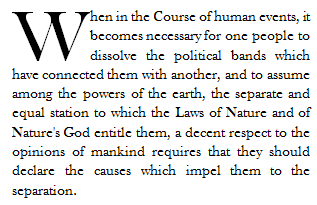
Creating a drop cap in Word 2010 is incredibly easy. Just go to the Insert tab and click the Drop Cap button  in the Text section of the ribbon. The cursor should be positioned in the paragraph you’d like to add the drop cap to, but it doesn’t necessarily have to be in front of the letter you want to add the effect to.
You can choose to place the drop cap within the paragraph or in the margins. To exercise a little more control over it, click Drop Cap Options. You’ll then see a dialogue box that looks like this:
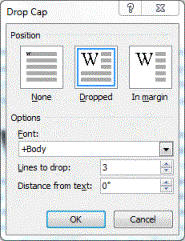
You can have the letter drop as many lines as you’d like, and even choose how much space to put between it and the text that follows.
Watermarks
You’re probably familiar with watermarks. They can sometimes be seen stamped into expensive bond paper, and they are visible when you hold twenty-dollar-bills up to the light. You’re probably thinking, though, “Cool, Word 2010 can do that?” The answer is, “Sort of.”
A real watermark is stamped into a page with expensive equipment. All Word 2010 does, really, is allows you to place a light, printable image behind all the text and objects in a document. You can use it to add an effect to the document, mark it as a sample or draft, or even authenticate it.
Unlike most objects that can be inserted into a document, the watermark button isn’t located on the Insert tab. Instead, to place one in your document, go to the Page Layout tab and look at the Page Background section of the ribbon. It is placed here because really, that’s what a watermark is-a background.
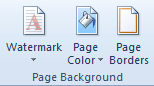
Several watermarks were included with your copy of Word 2010. They are things like “Confidential”, “Do Not Copy”, “Draft” and “Urgent.” If you are connected to the internet, you can easily browse watermarks that were created the Office 2010 community by clicking “More Watermarks from Office.com.”
You can also create custom watermarks using pictures on your computer or text of your own. Just click “Custom Watermark.” You’ll see a screen that looks like this:
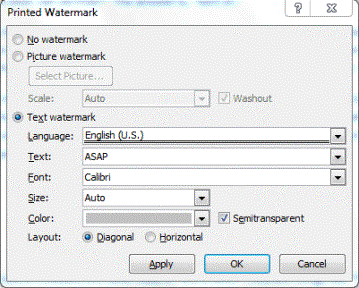
Choose your own language, font size and type, it’s orientation to the page (called “Layout”) and more. Type your text in the Text field (in the sample above the text chosen is “ASAP.”) Click okay to apply it.
You can remove a watermark at any time by returning to the Page Layout tab, selecting watermark, and clicking “Remove Watermark.”
Borders and Shading
Borders can be applied to an entire page, an entire document, or just certain sections of the document. They can also be applied to paragraphs.
To put a border around a page or a paragraph, go to the Page Layout tab and click the Page Borders button in the ribbon. It looks like this: 
When you click the Page Borders button, a new dialogue box opens.
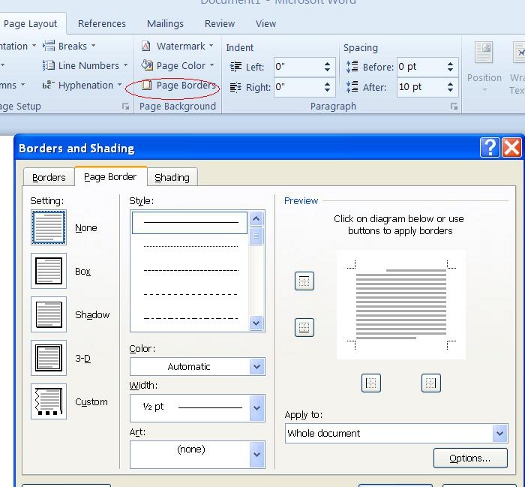
Use this window to define the attributes of your border. You can choose to remove a border by clicking the None box. Select a style, width, and color. You can even select some predefined artwork from the Art dropdown box.
Using the Apply to dropdown, you can choose whether to apply these settings to the entire document or just certain pages or sections.
Now take a look in the lower right hand corner of the window where it says “Options.” Click that for even more control over your border and shading options.
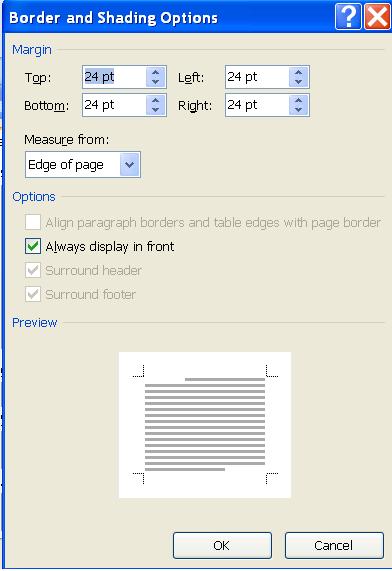
From here, you can choose the margins of your border, and whether or not to measure that from the edge of the page or the edge of the text. Click OK when you’re finished.
To create add shading to a page, click Page Borders and then Shading from the Borders and Shading dialogue window. A new window will open and look like this:
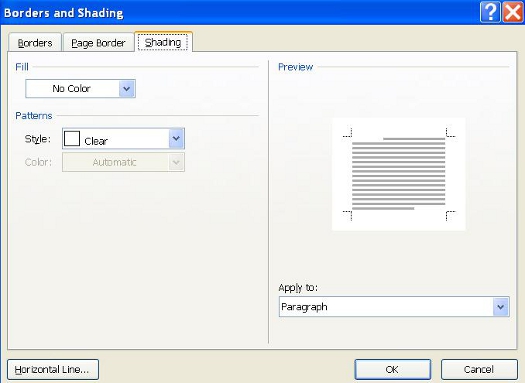
Select a color from the Fill dropdown menu, and a style. Click OK when finished.
Page Colors
Changing the page color is self-explanatory. To do so, click the Page Layout tab and then the Page Color button  . Simply select a color from the menu. To create your own color, click “More Colors.” To add a gradient, texture, pattern, or picture, click “Fill Effects.”
Using and Formatting Multiple Columns and Text Boxes
There are several benefits to using multiple columns. They can:
oMake your documents easier to read
oMake them visually interesting
oMake them look professional
oAllow you to use space more efficiently
Below is an example of a document that was made more interesting simply by breaking the text up into columns.
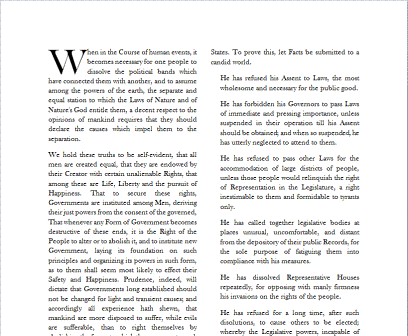
Adding columns to a document is incredibly easy. Go to the Page Layout tab and click the Columns Button.
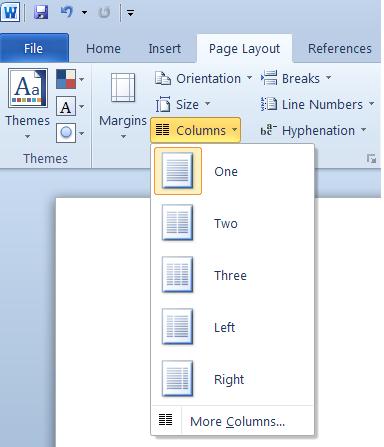
Now just select the number of columns or your preferred arrangement. For precise control over the column width and spacing, click “More Columns..”
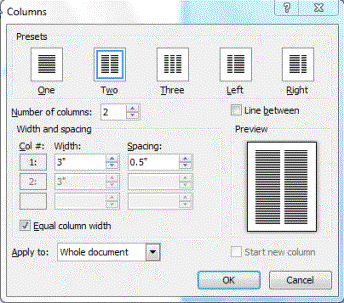
Click OK when finished.
Inserting and Resizing and Rotating Shapes
Word 2010, like past versions, provides you with a number of basic shapes you can use in your documents. They range from simple lines, to arrows, to banners, and just about every shape in between.
To see these shapes, go to the Insert tab and click the Shapes button. 
Below is a chart of the different shapes available:
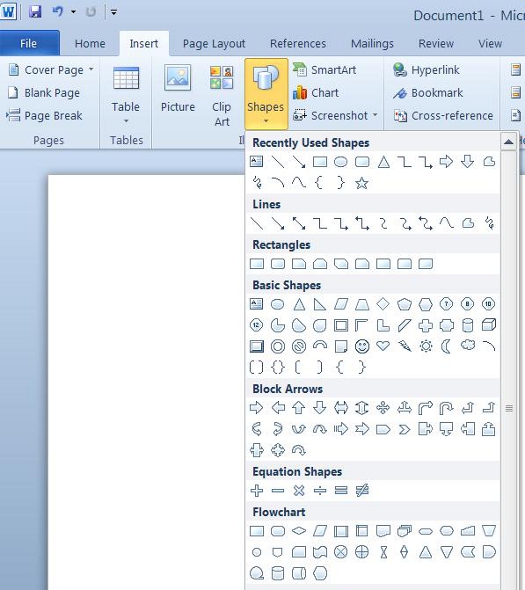
When you select a shape, your mouse pointer turns into a bold, black arrow. To insert the shape, click the place on the page you want it to appear, and while holding the left mouse button, drag it to the desired size.
Once a shape has been inserted into a document, you can resize it exactly the way you would any other object in Word: just select the object, position your mouse pointer over one of the corners, click and drag to the desired size.
Since you can interact with shapes the same way you interact with any other object you insert into Word, you can easily rotate it by clicking on it and dragging the round handle at the top of the object, or going to the Drawing Tools tab and clicking Rotate.
Stacking and Grouping Objects
In Word, you can stack objects or group them. Stacking an object means exactly what it implies: you’re putting one object on top of the other as in the example below. Every time you insert an object into Word, it automatically stacks on its own layer.

There are a couple of ways you can send an object forward to rearward. One such way is to select an object, then click the Drawing Tools tab. The Arrange section of the ribbon is on the right and looks like this:
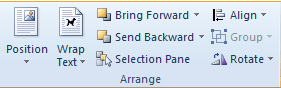
Click the Bring Forward button to move the object forward. Clicking the arrow next to the button gives you the option of adjusting the object forward one step, or all the way to the front.
The Send Backward button works in much the same way.
Grouping objects basically means combining them. Once you do this, you are able to move them or even rotate them as a single unit. The top picture shows the two objects as individuals. The picture on the bottom shows the objects after they’ve been grouped. Notice that Word acts as if the two objects are one.
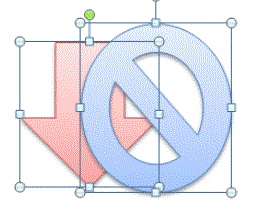

To group one or more objects, select the objects, then navigate to the Drawing Tools/Format ribbon and select Group. You can also select the objects, right click on them, and select Group. You can also use the shift button to select more than one object.
To ungroup objects, navigate to the Drawing Tool/Format ribbon and select Ungroup.


 Jermaine Byrant
 Nicole Johnson


 OVER
OVER
 RATING
 YEARS
YEARS